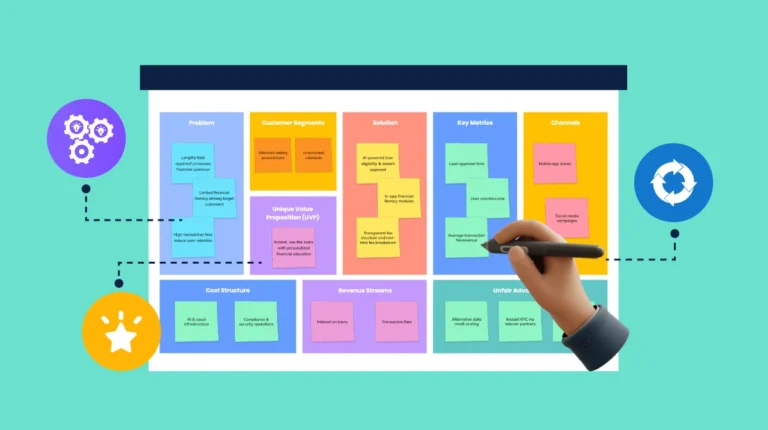
Whether you are putting together a quarterly report, a classroom lesson plan, or a grant proposal, the challenge is always the same: how do you take dense, complicated information and make it land? Raw data and text-heavy slides lose audiences fast. Infographics change that. They compress complex ideas into visuals that people actually read, remember, and share. The good news is that 2026 has brought a wider range of tools than ever before for creating professional-quality infographics, without needing a design degree. The tricky part is knowing which tools are worth your time and which ones fall short when things get real.
This guide breaks down what to look for, what to avoid, and how to get the most out of infographic tools whether you are running a business or leading a classroom.
Why Infographics Still Matter More Than Ever
There is a reason visual content continues to outperform plain text across every industry. Human brains process visual information dramatically faster than written words, which means your audience forms impressions of your data before they have finished reading a single sentence. For educators, infographics make abstract concepts concrete. For businesses, they turn performance numbers into a story stakeholders can follow. In 2026, with attention spans stretched thin across more channels than ever, the ability to communicate clearly through visuals is not a luxury. It is a core skill.
Infographics are also among the most versatile content formats available. A single well-designed infographic can anchor a presentation, serve as a handout, live on a website, get shared across social media, and appear in a printed report. The return on the investment of creating one is high when it is done right.
What Makes an Infographic Tool Actually Good
Not all tools are created equal. Before committing to a platform, it is worth knowing what separates genuinely useful tools from ones that look impressive in a demo but frustrate in practice.
Here is what to evaluate:
- Template quality and variety. Strong tools offer templates designed by professional graphic designers, not just generic layouts. Look for options that cover different use cases: statistical infographics, process flows, comparison charts, timelines, and maps.
- Customization depth. Can you adjust fonts, colors, spacing, and layout to match your brand or institution? Or are you locked into the platform’s look?
- Data integration. The best tools let you import data directly from spreadsheets or databases rather than forcing manual entry.
- Export options. You need high-resolution exports for print and appropriately compressed files for digital use. PDF, PNG, JPG, and SVG should all be available.
- Collaboration features. Teams and classrooms both need the ability to share, comment on, and co-edit projects in real time.
- Learning curve. A tool that takes weeks to master creates friction. Look for platforms with intuitive drag-and-drop interfaces and solid documentation.
Top Tips for Choosing and Using Infographic Tools in 2026
1. Start With a Clear Content Hierarchy
Before you open any tool, map out what your infographic needs to communicate. Identify your primary message, your supporting data points, and any calls to action. Effective infographics are built around a single core idea. Tools with pre-built layout guides can help enforce this discipline, but the thinking has to happen before you start dragging elements around a canvas.
2. Use Adobe Express for Fast, Professional Results
One of the strongest options available right now for both businesses and educators is Adobe’s dedicated infographic maker. Adobe Express combines a massive library of professionally designed templates with deep customization controls, making it one of the rare tools that works equally well for a first-time user and an experienced designer. The platform supports brand kit uploads so businesses can maintain visual consistency across all their materials, and it integrates with Adobe’s broader creative ecosystem for teams already working in that environment. For educators, the free tier offers substantial functionality without requiring a budget approval.
What makes Adobe Express particularly strong in 2026 is its AI-assisted design features, which suggest layout adjustments and color pairings in real time. You can import your own images, adjust typography, and export in multiple formats all from one place. It is browser-based and works across devices, which matters for teams and classrooms where people are not all on the same hardware.
3. Prioritize Brand Consistency From Day One
For businesses especially, visual consistency is not cosmetic. It is a trust signal. Every infographic you put into the world should feel like it came from the same organization. This means setting up a brand kit early, one that includes your color palette, approved fonts, and logo files. Many tools allow you to upload these assets once and access them across every project. Do not skip this step. Rebuilding brand consistency after the fact is far more time-consuming than getting it right at the start.
4. Match the Infographic Type to the Data
Different data calls for different infographic formats. This is one of the most common mistakes teams make: choosing a template that looks attractive rather than one that fits the information. Use these pairings as a general guide:
- Statistical infographics for survey results, percentages, and research findings
- Timeline infographics for historical context, project milestones, or course progression
- Process infographics for step-by-step workflows, onboarding guides, or scientific methods
- Comparison infographics for product features, before-and-after scenarios, or competing approaches
- Geographic infographics for location-based data, regional breakdowns, or distribution maps
Getting this right from the start saves significant revision time and produces a cleaner final product.
5. Keep Text Minimal and Strategic
The most effective infographics use text sparingly. Your job is not to write sentences that explain the visual. Your job is to use the visual to eliminate the need for sentences. Aim for short labels, punchy statistics, and concise callouts. If you find yourself writing full paragraphs inside your infographic canvas, that is a signal to step back and reconsider the format.
A practical rule: if any single text block in your infographic exceeds 20 words, ask whether it can be replaced with a visual element or cut entirely. This discipline pays off in readability and visual impact.
6. Leverage Collaboration Features for Feedback Loops
Whether you are working with a marketing team or a group of co-teachers, the ability to share a draft and collect feedback inside the tool is a significant time saver. Look for platforms that support comment threads, version history, and real-time co-editing. Avoid workflows where you are exporting files, attaching them to emails, and then manually incorporating feedback from multiple sources. These workflows introduce errors and slow everything down.
For educators, collaboration features also open up interesting pedagogical possibilities. Students can work together on infographic projects that demonstrate research and synthesis skills, with the teacher able to see progress and offer guidance directly inside the platform.
7. Use Data Visualization Add-Ons Thoughtfully
Many infographic tools now include built-in chart and graph builders. These are useful, but they require care. A chart that is poorly scaled, uses misleading axis labels, or omits context can actively harm your credibility. When using any data visualization feature, double-check your source data, ensure your scales start at zero unless there is a strong methodological reason otherwise, and always cite where your numbers come from. Transparency builds trust, and infographics that reference reputable sources consistently perform better with professional audiences.
8. Optimize Your Exports for Each Use Case
A single infographic often needs to live in multiple places, and each destination has different technical requirements. Here is a practical export checklist:
- For presentations: Export as PNG at 150 DPI or higher to ensure crisp display on projectors and screens
- For print handouts: Use PDF at 300 DPI to preserve sharp edges and color accuracy
- For websites and social media: Export as a compressed JPEG or PNG to balance quality and load time
- For scalable use (logos, icons): SVG format preserves quality at any size without pixelation
Building this export step into your workflow from the beginning prevents the last-minute scramble of realizing your beautiful infographic looks blurry on the conference room projector.
9. Design With Accessibility in Mind
Accessibility is increasingly both a legal and ethical expectation. Infographics that rely entirely on color to convey meaning will fail for colorblind viewers. Text that is too small or too low contrast creates barriers for people with visual impairments. In 2026, the best tools include built-in accessibility checks, but you should also develop your own habits: use patterns alongside colors, keep font sizes at 12pt minimum even in dense layouts, and add alt text descriptions whenever you publish an infographic online.
For educators working with diverse classrooms, this is especially important. Accessible design is not about lowering the bar on aesthetics. The most thoughtfully designed infographics are also the most accessible ones.
10. Build a Reusable Template Library
Once you find layouts and color schemes that work well for your organization or classroom, save them as custom templates. Most tools allow this. A personal template library means every new project starts from a strong foundation rather than from scratch. Over time, this dramatically speeds up production and creates a recognizable visual identity across your materials. For businesses producing multiple infographics per month, this is not a nice-to-have. It is essential.
For Educators Specifically: Using Infographics in the Curriculum
Infographics are not just a presentation aid for teachers. They are also a powerful learning activity for students. When learners are asked to synthesize research into a visual format, they engage with the material at a deeper level than they would by writing a traditional essay. The constraint of limited space forces prioritization, and the visual format demands clarity of thought.
Several platforms offer education-specific pricing and features, including classroom management tools, student account options, and curriculum-aligned templates. If you are evaluating tools for a school or district deployment, ask specifically about privacy compliance (FERPA and COPPA in the U.S.), student data handling policies, and whether the platform supports single sign-on through your existing student information system.
For Businesses Specifically: Infographics Across the Marketing and Ops Funnel
Marketing teams have long understood the power of infographics for content marketing, social media, and lead generation. But the use cases inside organizations are just as valuable and often underutilized. Internal communications, employee training materials, process documentation, and executive presentations all benefit from strong visual design. An infographic explaining a new HR policy will get read. A four-page PDF will not.
For businesses managing multiple brands or product lines, look for tools that support multiple brand kits and allow team-level permissions. You want content creators to have access to approved assets without being able to accidentally overwrite them. Role-based access controls, shared asset libraries, and team workspaces are the features to prioritize at the organizational level.
Frequently Asked Questions
What is the difference between an infographic and a data visualization?
These terms are often used interchangeably, but they describe different things. A data visualization is specifically a graphical representation of data, such as a bar chart, scatter plot, or heat map. An infographic is a broader format that may incorporate data visualizations alongside icons, illustrations, text, and other graphic elements to tell a complete story. Infographics are generally more editorial in nature, meaning they involve a point of view and a narrative arc. Data visualizations tend to be more neutral presentations of information. Both are valuable, but they serve different purposes. Knowing which you need before you start designing will save you significant time and produce a cleaner result.
How do I know if my infographic is actually effective?
Effectiveness is measurable. For digital infographics, track metrics like time on page, social shares, and inbound links. For presentations, pay attention to audience questions. If people are asking questions that your infographic already answered, that is a signal the information was not landing clearly. For educational settings, comprehension checks and quiz scores before and after infographic-based lessons give useful data. You can also run simple usability tests: show your infographic to someone unfamiliar with the topic for 30 seconds, then ask them what they took away. If their answer matches your intended message, you are on track. If not, that feedback is invaluable before you publish.
Are free infographic tools good enough for professional use?
In many cases, yes. The gap between free and paid tiers has narrowed significantly in recent years. Most leading platforms offer free access to a solid template library and core editing tools. Where paid plans genuinely earn their cost is in brand kit storage, higher-resolution exports, unlimited cloud storage, advanced collaboration features, and access to premium template libraries. For individual educators or small teams doing occasional infographic work, a free tier will often be sufficient. For businesses producing high volumes of content or managing brand standards across teams, a paid plan pays for itself quickly in time saved.
What content management tools can help me organize and distribute infographics once they are created?
Creating the infographic is only half the work. Getting it in front of the right audience is the other half. For businesses, a content management system with media asset management capabilities is worth investing in. Notion is a popular option for teams that need to store, organize, and share infographics alongside related content, project notes, and workflows. It supports embedded visuals, team-level permissions, and a flexible database structure that makes it easy to build a searchable library of all your visual assets. For educators, learning management systems often serve this function, but supplementing with a tool like Notion can make it easier to organize materials across courses and semesters.
How long should it take to create a professional infographic?
This depends on complexity, but as a rough benchmark: a straightforward single-topic infographic using an existing template should take between one and three hours from content planning to final export. A more complex piece involving original data, custom illustrations, or multiple data visualizations might take a full day or more. The single biggest time drain is usually the content planning stage, not the design stage. Teams that front-load their time on defining the message, gathering accurate data, and outlining the narrative consistently produce better infographics faster than teams that jump straight into a tool and design their way toward a story. Build the brief first, then build the infographic.
Conclusion
The right infographic tool does not just make your work look better. It makes your communication more effective, your ideas more persuasive, and your time more productive. Whether you are a business leader trying to make data-driven decisions stick with your team, or an educator working to make complex subjects click for students, the tools available in 2026 are more capable and accessible than ever before.
The key is knowing what you need before you start shopping. Match the tool to your use case, invest the time in content planning before you open the canvas, and build habits around consistency, accessibility, and purposeful design. Infographics done well are not decoration. They are a competitive advantage.
Start with a platform that meets you where you are, build your skills and your template library over time, and do not be afraid to iterate. The best infographic you will ever make is always the next one.